
Lenovo USB-C Slim Travel Dock
4.3Editor score
Eight-port compact design
Up to 65W power pass-through
Single 4K display support
Our Lenovo Docking Station guide compares 10 models for display support, power delivery, ports, portability, networking, and business management.
A Lenovo docking station can turn a compatible laptop into a more practical workstation by adding displays, wired networking, faster USB connections, and a cleaner single-cable setup. The right model depends on your laptop protocol, monitor arrangement, power requirements, and whether portability or fleet management matters most.
We compared the ten docks in this guide by examining their listed display capabilities, port selection, power delivery, compatibility, networking features, and intended environments. The list includes full-size ThinkPad docks, universal business docks, compact travel models, and a portable mini dock, giving both desk-bound and mobile users several practical options.
Each review explains where a particular Lenovo docking station stands out, where its specifications are less demanding, and which user is most likely to benefit. Ratings and product details reflect the supplied information, while availability, bundled accessories, firmware behavior, and current prices can change over time, so verify the listing before purchasing.
4.3Editor score

4.3Editor score

4.2Editor score
The comparison below places all ten Lenovo docking stations side by side, highlighting the differences in display support, charging, connectivity, portability, and enterprise-management features.




The Lenovo USB-C Dual Display Travel Dock earns a 4.2 rating and stands apart by combining a travel-friendly form with support for two 4K displays. It is aimed at mobile professionals who need more than a basic single-screen adapter and do not want to carry a full-size desk dock. Its integrated cable also reduces the number of items needed in a travel bag.
We may earn a commission when you buy through this link, at no additional cost to you.
Connectivity is the central attraction. The listed configuration includes a DisplayPort 1.4 connection, HDMI 2.0, one USB-A 3.2 port rated at 10Gbps, two USB-C 10Gbps ports, and Gigabit Ethernet. One USB-C port provides always-on charging for a mobile device when the notebook is disconnected, while the host connection can deliver up to 100W when paired with the optional 135W charger.
The main compromise is that this travel-focused design offers only one conventional USB-A port. Users who regularly connect a keyboard, mouse, storage drive, and charging cable may need to prioritize between the USB-A and USB-C connections or carry an additional hub. Display output also ultimately depends on the capabilities of the connected laptop, even though the dock itself supports two 4K screens.
This is an excellent choice for frequent travelers who regularly work with dual displays, especially when Ethernet access is important. It is less suitable for a permanent workstation requiring many legacy USB-A devices or unusually high charging demand. For those needs, a full-size ThinkPad dock offers a broader port inventory and stronger integration with business management tools.
Most compact docks prioritize one display, but this model supports two 4K outputs through DisplayPort and HDMI. That makes it unusually useful for travelers who routinely use a laptop screen alongside a portable monitor or work with two external displays.
The integrated cable handles the host connection, while the listed charging options can reach 100W with the appropriate adapter. Gigabit Ethernet adds a stable wired-network route for offices, hotel workspaces, and locations where Wi-Fi reliability is uncertain.
We may earn a commission when you buy through this link, at no additional cost to you.
The ThinkPad Thunderbolt 3 Dock Gen 2 135W has a 4.1 rating and provides a large, traditional workstation-style port selection. Its defining feature is the combination of two HDMI and two DisplayPort outputs, giving users considerable flexibility when attaching multiple screens, projectors, and other visual equipment through a single Thunderbolt connection.
We may earn a commission when you buy through this link, at no additional cost to you.
The dock includes a Thunderbolt 3 Gen 2 port, a USB-C port, four USB 3.1 Gen 2 ports, and a fifth Gen 2 port with always-on charging. It also provides Gigabit Ethernet, a 3.5mm audio connection, and a security-lock slot. A 135W power adapter, power cord, Thunderbolt 3 cable, and documentation are included, reducing uncertainty about what is needed to establish the desk setup.
Its main limitation is the explicitly listed operating-system and compatible-device information, which centers on Microsoft Windows 7, Windows 10, and a defined set of ThinkPad models. Those details may not reflect the broader current laptop ecosystem, so buyers should verify their exact computer before ordering. The physical design is also less travel-focused than the smaller docks in this guide.
Choose this model when your priority is abundant display outputs, multiple USB-A peripherals, and a high-power workstation connection. It is particularly compelling for a compatible ThinkPad that benefits from a Thunderbolt 3 dock and a large selection of full-size peripherals. Buyers with newer or non-ThinkPad systems should check current protocol and device requirements.
Two HDMI and two DisplayPort connectors provide more ways to organize a multi-screen desk than most compact docks. Users can choose connections based on monitor availability without relying on a single video standard.
Five USB-A ports, Gigabit Ethernet, audio, always-on charging, and a security-lock slot create a more complete fixed-workstation interface. The included 135W adapter also makes this a strong candidate for power-hungry laptop workflows.
We may earn a commission when you buy through this link, at no additional cost to you.
The ThinkPad USB-C Dock Gen 2 40AS0090US holds a 4.3 rating and is one of the most balanced models in the guide. It supports up to three external monitors, offers both modern DisplayPort 1.4 and HDMI 2.0, and includes a 90W AC adapter, power cord, and USB-C cable. That combination makes it a straightforward choice for building a permanent ThinkPad desk setup.
We may earn a commission when you buy through this link, at no additional cost to you.
Its port inventory includes three USB 3.1 ports, two USB 2.0 ports, a combo audio jack, Gigabit Ethernet, one HDMI connection, and two DisplayPort connections. The modern and legacy USB mix is useful for peripherals that have not moved completely to USB-C, while gigabit Ethernet provides a dependable wired-network option.
The dock can support a maximum of one 4K display at 60Hz when using DisplayPort 1.4 and HDMI 2.0, according to the supplied information, but the actual number and resolution of external displays depend on the laptop's output capabilities. As a result, buyers should not treat the three-monitor specification as a guarantee that every supported computer can drive three screens simultaneously.
This dock is our Editor's Choice because it balances monitor flexibility, useful legacy connections, wired networking, and a bundled power solution without specializing too narrowly. It is well suited to ThinkPad owners who want a dependable desk hub and a simpler transition from USB-C laptops. Users planning demanding multi-screen workflows should verify their computer's display matrix before purchase.
The mix of USB 3.1, USB 2.0, DisplayPort, HDMI, Ethernet, and audio avoids the common problem of a dock that is either modern but sparse or legacy-heavy but limited. It suits a broad range of office peripherals.
Up to three external monitors are listed as the maximum, and the dock includes both modern video standards. The critical qualification is that the connected laptop's own graphics and USB-C capabilities determine the final output.
We may earn a commission when you buy through this link, at no additional cost to you.
The ThinkPad USB 4 Smart Dock 5500 earns a 4.2 rating and is the most technically advanced option in the guide. It uses USB4 technology to provide up to 40 Gbps of bandwidth, described as four times the performance of USB-C 3.2 Gen 2. That extra headroom is meaningful for users combining high-resolution displays, fast storage, and numerous USB peripherals.
We may earn a commission when you buy through this link, at no additional cost to you.
Display flexibility is another major strength. The dock can connect one 8K 60Hz display or two 4K 144Hz monitors, while the product title also states support for up to four displays. Power delivery supports up to 100W to the laptop, reducing the need for a separate charger, and an integrated USB4 cable simplifies the host connection.
This is not only a hardware product. Cloud-based Lenovo Accessories Fleet Manager allows administrators to manage, update, configure, and diagnose a group of docks remotely through a web browser. That makes the Smart Dock 5500 especially relevant to organizations that deploy standardized workstations and need centralized oversight.
The trade-off is the requirement for suitable USB4 hardware and the potential complexity of a premium platform. A user with a basic USB-C laptop and a single standard monitor may not benefit from its bandwidth or management capabilities. For demanding users and IT teams, however, it offers the strongest combination of throughput, display potential, charging, and centralized administration.
The USB4 interface provides up to 40 Gbps, creating ample headroom for fast storage and peripheral connections. This is particularly useful for professional desks that move large files or use several high-bandwidth devices.
Lenovo Accessories Fleet Manager extends the value beyond the desk by enabling remote configuration, updates, and diagnostics. This makes the dock easier to deploy consistently across an organization.
We may earn a commission when you buy through this link, at no additional cost to you.
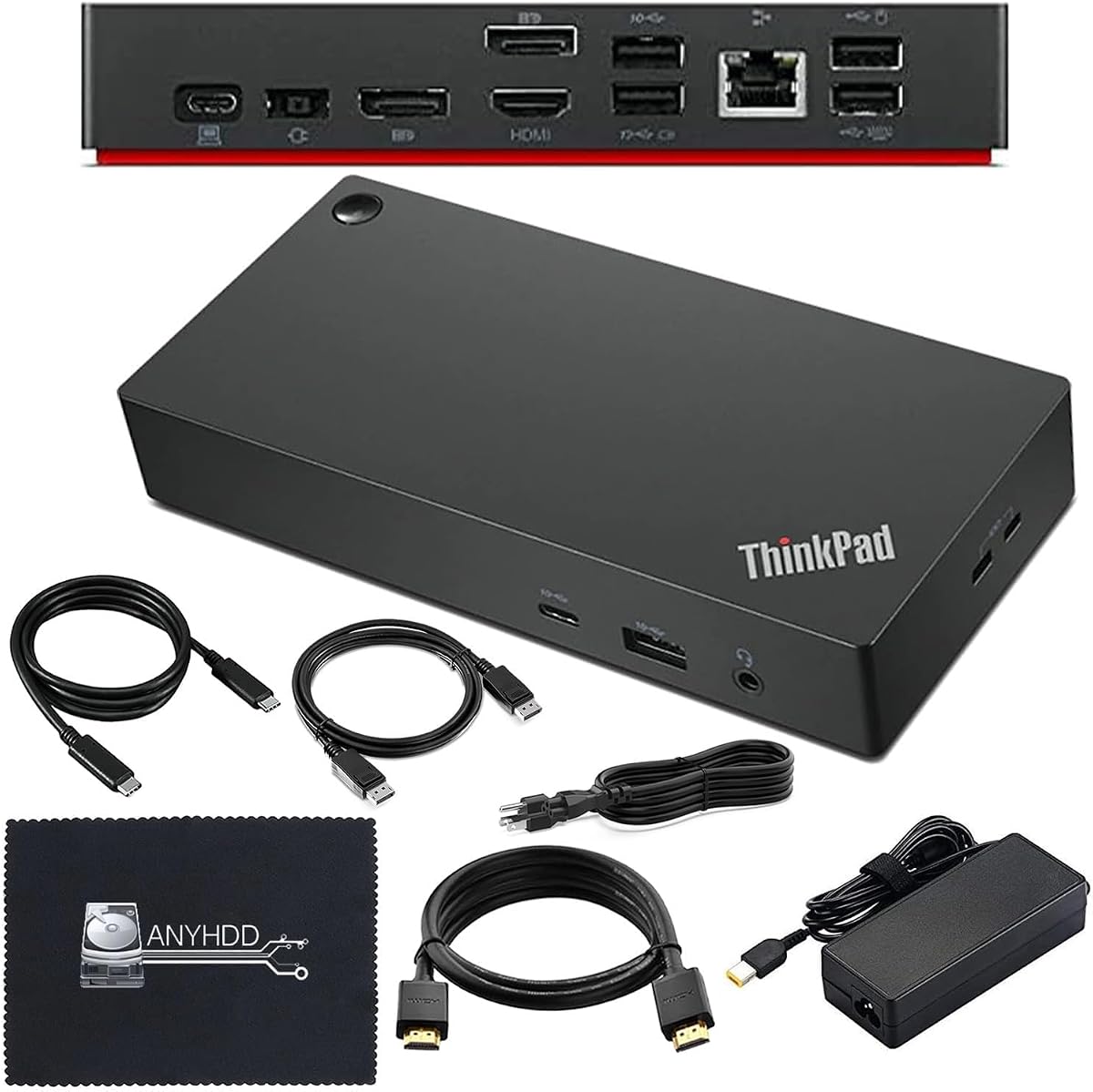
The 40AY0090US Lenovo ThinkPad docking station has the second-highest rating in the group at 4.6. It is designed as a practical workstation dock for compatible USB-C or Thunderbolt systems, with HDMI and DisplayPort outputs, 4K display support, and a 90W AC power adapter. The package is especially convenient because it includes the cables a new user is most likely to need.
We may earn a commission when you buy through this link, at no additional cost to you.
Included accessories include the dock, a USB-C cable, a 4K HDMI cable, a 4K DisplayPort cable, the 90W adapter, and a microfiber cloth. This reduces setup friction and makes the package attractive for creating a new desk where display cables may not yet be available. Its video connections give users a choice between HDMI and DisplayPort rather than requiring a specific interface.
The listing explicitly advises buyers to confirm that the computer is USB-C or Thunderbolt compatible and notes that firmware may need to be updated if problems occur. Those are important caveats because the presence of a USB-C-shaped port alone does not guarantee every docking feature will work. The product's listed 4K support is also more attractive when the host computer and monitor can both handle the intended resolution and refresh rate.
This dock is best for a user who wants a complete, ready-to-connect ThinkPad desk package and values having the right display cables included. It may be less appealing if a precise port inventory is your primary concern, since the supplied information emphasizes the core display, power, and accessory elements rather than enumerating every USB port. Verify host compatibility and update firmware when required.
The bundled USB-C, HDMI, and DisplayPort cables reduce the chance that a new workstation will be unusable immediately. The included 90W adapter also supplies dedicated charging power for the connected system.
Some users may need to update the dock firmware to work correctly with their computer. Confirming USB-C or Thunderbolt support before purchasing avoids many avoidable setup problems.
We may earn a commission when you buy through this link, at no additional cost to you.
The ThinkPad USB-C Dock Gen 2 40AS0090 carries a 3.8 rating, the lowest among the ten products, but it remains a capable option for a compatible ThinkPad desk. Its central strengths include 10Gbps USB data transfer, wired networking, support for PXE Boot, System Wake-on-LAN, and ThinkPad MAC address pass-through.
We may earn a commission when you buy through this link, at no additional cost to you.
The dock supports DisplayPort 1.4 and HDMI 2.0 for as much as one 4K display at 60Hz, subject to the connected system's output. This makes it a sensible choice for a single high-resolution monitor or a multi-screen setup in which the laptop has sufficient display capabilities. USB peripherals can also be transferred at fast 10Gbps rates when paired with suitable devices and cables.
The lower rating suggests that some buyers may have encountered issues or unmet expectations, although the supplied information does not identify a specific recurring fault. The video qualification is another consideration: the dock's standards do not override the number of displays or resolutions supported by the host laptop. A three-year worldwide warranty is a meaningful advantage for buyers who want long-term desk coverage.
This model is most appropriate for a ThinkPad user who values management functions, data-transfer speed, and a standard permanent docking station rather than a highly portable adapter. It is less compelling for someone seeking a compact travel accessory or a guaranteed four-monitor arrangement. Checking the complete port and compatibility information for the exact system is essential before purchase.
PXE Boot, System Wake-on-LAN, and MAC address pass-through can simplify deployment in business environments. These functions are especially relevant when the dock will be used as part of a standardized IT-managed workstation.
DisplayPort 1.4 and HDMI 2.0 are useful standards, but the laptop's own output determines the final experience. Users should consult the system requirements rather than assuming every multi-monitor arrangement will be available.
We may earn a commission when you buy through this link, at no additional cost to you.
The ThinkPad Universal USB-C Dock 40AY0090 has a 4.1 rating and emphasizes a clean one-cable workflow for office, hot-desking, and home setups. Its broad appeal comes from the combination of display and accessory connectivity, fast USB-C notebook charging, and management functions intended for professional IT environments.
We may earn a commission when you buy through this link, at no additional cost to you.
One of its most useful features is the ability for critical firmware updates to be installed automatically. It also supports traditional IT tools such as PXE boot, Wake-on-LAN, and MAC Address Pass Through. Administrators can remotely and securely gather information about the dock and attached devices, reducing the need for physical intervention when diagnosing a deployed setup.
The supplied information is more focused on workflow and management than on a detailed port-by-port inventory. As a result, buyers who require an exact number of USB-A, USB-C, video, or networking connections should consult the current product documentation and verify their requirements. Although the dock is described as universal, the depth of management features can vary by connected system.
This is a good match for businesses standardizing ThinkPad or compatible USB-C devices and for users who value a tidy desk. It is less compelling for a buyer whose main goal is a specific uncommon legacy port or a highly compact travel accessory. The remote-management and automatic-update features are what distinguish it from a basic home-office hub.
A single host connection can reduce cable clutter at a fixed desk. This is especially useful in hot-desking spaces where users need to connect quickly and move between workstations.
Automatic critical firmware updates, PXE boot, Wake-on-LAN, and remote information gathering help administrators maintain deployed hardware. The result is better visibility without requiring someone to visit every dock.
We may earn a commission when you buy through this link, at no additional cost to you.
The Lenovo USB-C Slim Travel Dock holds a 4.3 rating and is our Best Budget selection because it packs eight ports into a compact travel-oriented design. It offers 4K at 60Hz display support, an integrated USB-C cable, and up to 65W power pass-through for compatible USB-C laptops.
We may earn a commission when you buy through this link, at no additional cost to you.
The listed USB inventory includes two USB-A 3.2 Gen 2 ports rated at 10Gbps and three USB-C 3.2 Gen 2 ports rated at 10Gbps, with one designated for power only. A single HDMI 2.1 connection handles the display output. This is a broader port selection than many mini docks, although it remains less versatile for multiple screens than several full-size alternatives in the list.
Its primary limitation is the single HDMI display output. Users who regularly connect two external monitors should look toward the Dual Display Travel Dock or a full-size ThinkPad dock instead. The 65W pass-through ceiling may also be insufficient for the most power-intensive workstation laptops, though it is designed for everyday compatible systems.
This dock is an excellent choice for a traveler, student, or hybrid worker who wants one compact hub for a monitor, keyboard, mouse, storage, and charging. The integrated cable is convenient, and the slim enclosure should be easier to carry than a permanent desktop dock. The 66% post-consumer recycled content in the exterior also gives sustainability-minded buyers an additional reason to consider it.
The combination of USB-A, USB-C, HDMI, and an integrated host cable gives mobile users more connection choices than a basic adapter. It can serve as the central hub in a compact suitcase workspace.
The 4K at 60Hz HDMI output is well suited to a portable monitor or a standard office display. Users who need multiple screens should choose a model with both HDMI and DisplayPort outputs.
We may earn a commission when you buy through this link, at no additional cost to you.
The 40B30090US Universal Business Dock has a perfect 5.0 rating, making it the most favorably reviewed model in the guide. It is designed for compatible notebooks that support USB-C Alt Mode or Thunderbolt and promises a practical one-cable business workstation with dual-display support.
We may earn a commission when you buy through this link, at no additional cost to you.
The dock uses one DisplayPort and one HDMI connection to drive two external monitors at up to 4K and 60Hz. It includes two USB-C 3.2 Gen 2 ports and three USB 3.2 Gen 2 ports, plus a combo audio jack. The package also includes a USB-C cable, a ZoomSpeed DisplayPort cable, a ZoomSpeed HDMI cable, a power adapter, and a cleaning cloth.
There is some inconsistency in the supplied information about Gigabit Ethernet, with some sources noting the connection and others omitting it. Confirm the current physical port list before buying if wired networking is essential. The standard 90W adapter can deliver up to 65W to the notebook, while an optional 135W adapter raises the available laptop power to 100W.
This dock is an attractive all-monitor solution for business users who want modern USB connectivity, dual 4K output, and a generous accessory bundle. Its high rating suggests strong user satisfaction, although ratings alone cannot confirm suitability for every computer. Check the USB-C mode, display requirements, adapter power, and Ethernet configuration before making the final decision.
Separate HDMI and DisplayPort connections provide a practical way to run two 4K monitors at 60Hz. The included high-resolution display cables make the package easier to deploy immediately.
Five 10Gbps-class USB data ports cover peripherals and storage, while charging can rise from 65W to 100W with the appropriate adapter. The standard configuration should be chosen according to the laptop's power requirements.
We may earn a commission when you buy through this link, at no additional cost to you.
The Lenovo 7-in-1 Portable USB-C Mini Dock carries a 4.3 rating and serves a distinct need: connecting a modern USB-C laptop to HDMI or VGA while retaining basic wired networking and USB-A access. VGA support is especially relevant for older projectors, legacy office displays, and presentation environments that may not have an HDMI input.
We may earn a commission when you buy through this link, at no additional cost to you.
The dock includes HDMI and VGA outputs, Gigabit Ethernet, two USB-A connections, and USB-C power pass-through. With the included 65W power adapter, charging to the connected system is listed at 45W. It is compatible with USB-C laptops from Lenovo, Apple, HP, and Dell, subject to support for standard USB-C Alt Mode or Thunderbolt protocols.
The 45W charging figure is the clearest limitation. It may be sufficient for many ultraportable laptops, but it is not an ideal match for a high-performance notebook that requires more substantial power delivery. The product also lists enterprise-oriented functions such as PXE boot, Wake-on-LAN, and MAC address pass-through, although the depth of support can vary by laptop brand and model.
Choose this mini dock when legacy display compatibility and compactness matter more than high charging power or multiple high-resolution monitors. It is a particularly practical travel companion for presentations where the venue may offer VGA. For newer dual-monitor desks, a model with DisplayPort, HDMI, and stronger power delivery will offer a more flexible long-term setup.
The VGA output provides a valuable fallback for older projectors and displays. Combined with HDMI, it lets the dock adapt to a wider range of meeting and classroom equipment.
Gigabit Ethernet provides a stable wired-network option in offices and hotels. PXE boot, Wake-on-LAN, and MAC address pass-through add value for compatible business laptops.
We may earn a commission when you buy through this link, at no additional cost to you.
The most useful Lenovo docking station is not determined by port count alone. Display modes, host-laptop capabilities, charging requirements, portability, networking, and management features should be matched to the way you work.
Start with the protocol supported by your laptop. Lenovo USB-C and Thunderbolt docks work through laptops that support industry-standard USB-C Alt Mode or Thunderbolt, but the depth of functionality varies by device. Display output, power delivery, networking utilities, and firmware features may not all behave identically across manufacturers. A ThinkPad dock can have additional advantages when paired with a compatible ThinkPad, while a universal dock may be more practical when your equipment changes.
Confirm the exact protocol before buying, and review the dock's complete compatibility notes. A USB-C port alone does not guarantee dual-monitor support, high charging power, or every management function.
Consider both the number of monitors you want and the resolution and refresh rate you need. Several docks in this guide support dual 4K output, one supports 8K or dual high-refresh-rate 4K, and others provide a single HDMI connection. A multi-display dock also has to coordinate DisplayPort, HDMI, and the graphics capabilities of the host system. For a single portable monitor, a slim travel dock is usually easier to carry; for a permanent multi-screen office, prioritize a dock with separate DisplayPort and HDMI outputs.
Choose a dock whose listed video outputs match your actual monitors. Do not rely on a maximum display count without checking the laptop's supported display matrix.
Power delivery is determined by several variables, including the dock's supported protocol, included adapter, host laptop, and the device connected to the always-on charging port. Travel docks in this guide support up to 65W, the portable mini dock provides 45W pass-through with its listed adapter, and several full-size options include 90W or 135W adapters. Higher-power configurations can support demanding laptops while reducing desk clutter.
Use the manufacturer's power requirements as the guide. If your computer needs more than the dock supplies, choose a higher-wattage adapter or a model designed for that power level rather than risking unreliable charging.
Count the devices you actually connect rather than choosing by total port count. Modern compact docks may favor USB-C, while office setups often need multiple USB-A ports for keyboards, mice, receivers, and storage. A full-size ThinkPad dock can accommodate more conventional USB devices, whereas the Dual Display Travel Dock has only one listed USB-A port. Note the generation and rated transfer speed of each USB connection, and check whether any USB-C port is power-only rather than a data port.
Build a short list of required ports, then buy the smallest model that covers that list. This avoids paying for unused features while reducing the chance of needing a second hub.
Portability depends on more than the product name. Integrated cables reduce the number of items to carry, while a slim enclosure is easier to pack than a full workstation dock. The USB-C Slim Travel Dock and 7-in-1 Mini Dock are designed with mobile use in mind, whereas the ThinkPad USB 4 Smart Dock 5500 and several Gen 2 docks target permanent desks. A travel model may include fewer legacy ports, so assess your travel setup separately from your office setup.
Choose a compact single-screen model for occasional mobile use. Choose a broader desktop dock when you regularly switch among several monitors and legacy peripherals at a fixed station.
Gigabit Ethernet can provide a more stable connection than Wi-Fi and is valuable in offices, hotels, and shared workspaces. Some mini and travel models include RJ45, while some universal business listings have inconsistent Ethernet information. Enterprise functions such as PXE boot, Wake-on-LAN, and MAC address pass-through can also matter in managed environments, but they are most dependable with compatible ThinkPad systems.
If your work depends on wired networking, verify the RJ45 port in the current listing and confirm that your laptop supports the desired boot and management functions. Do not infer Ethernet support solely from a product description that omits it.
Organizations managing many docks can benefit from remote updates, configuration, and diagnostics. The ThinkPad USB 4 Smart Dock 5500 offers cloud-based Lenovo Accessories Fleet Manager, while the ThinkPad Universal USB-C Dock emphasizes automatic firmware updates and remote information gathering. These features reduce support work and can make hardware replacement more consistent, but they matter less to a single home user.
Prioritize management features if you deploy docks across multiple employees or locations. For personal use, focus instead on display support, port layout, charging, and price.
A dock's value includes the accessories you will not need to buy separately. Several models include a power adapter, host cable, or HDMI and DisplayPort cables, while the portable mini dock lists an included 65W adapter. The 40AY0090US package includes display cables and a cleaning cloth, and the Universal Business Dock includes a USB-C cable, two display cables, an adapter, and cloth. Conversely, some travel docks rely more heavily on an integrated cable and external charger.
Check the box contents before ordering, especially if you already own suitable cables or need a different adapter. The included accessories can materially affect convenience and overall value.
Begin by checking your laptop's USB-C or Thunderbolt requirements, identifying the displays and peripherals you intend to connect, and choosing the appropriate power adapter. Position the dock near the monitor, route the host cable without creating strain, and connect the display cables before attaching external devices. Once everything is in place, power on the laptop and confirm that the computer recognizes the dock and the connected monitors.
If displays do not appear, check the monitor input, cable connections, and laptop display settings. Update the dock firmware when the listing recommends doing so, and confirm that the computer supports the selected resolution, refresh rate, and number of displays. A dock's advertised maximum output does not override the laptop's own graphics or USB-C capabilities. If networking is unavailable, verify the Ethernet link and any required management settings.
Treat the dock as an active electronic device rather than an unrestricted cable organizer. Keep the enclosure dry, vents unobstructed, and the surface free from dust or sticky residue. Avoid placing heavy objects on top, and use the supplied or specified power supply rather than an unverified substitute. Arrange frequently disconnected cables so they are not pulled sharply from either the dock or the laptop port.
No. A dock can provide the physical video outputs, but the connected laptop must support the desired display count, resolution, refresh rate, and USB-C or Thunderbolt mode. The product listing gives the dock's potential capability, while the host computer determines what can actually be displayed.
Travel docks emphasize a compact enclosure, an integrated host cable, and low weight for carrying. Full-size ThinkPad docks generally provide more ports, higher adapter options, and stronger enterprise-management functions. The best choice depends on whether the dock must be carried regularly or remain at a fixed desk.
Not always. Some USB-C docks support dual 4K displays when the host supports USB-C Alt Mode DisplayPort or a compatible Thunderbolt mode. Check both the dock's listed video support and the laptop's manual, because connector shape alone does not confirm multi-monitor capability.
First confirm that the monitor is set to the correct input and that all cables are firmly seated. Next, check the laptop's display settings, verify USB-C or Thunderbolt compatibility, and update the dock firmware if required. The display matrix for your exact laptop model is the most reliable source for supported resolutions and monitor combinations.
Yes, when the laptop, dock, and selected power adapter support the required charging protocol. Delivery varies across the guide, with listed figures ranging from 45W and 65W to higher 90W or 100W configurations. Match the adapter to the laptop's power requirements for reliable operation.
No. Features such as PXE boot, Wake-on-LAN, MAC address pass-through, automatic firmware updates, and remote diagnostics are most dependable with supported ThinkPad systems. A non-Lenovo laptop may connect successfully while providing only a subset of these functions.
Choose based on the connectors already available on your monitors and the resolution you need. Both gives more flexibility when mixing equipment or arranging displays, while a single-output travel dock is usually sufficient for one portable screen. A VGA connection is worth considering for older projectors.
Review the in-the-box list before purchase. Some models include a power adapter, host cable, and display cables, while others emphasize an integrated cable or require a suitable charger separately. Checking the package also prevents unexpected gaps when creating a new workstation away from your usual desk.
The Lenovo USB-C Slim Travel Dock is the most practical value-oriented choice for a compact, single-screen mobile setup. The ThinkPad USB-C Dock Gen 2 stands out as the most balanced option for a permanent desk, while the ThinkPad USB 4 Smart Dock 5500 offers the highest-end combination of bandwidth, display potential, charging, and centralized fleet management.
Prioritize the constraints that cannot be changed after purchase: your laptop's USB-C or Thunderbolt mode, required display arrangement, charger power, and essential ports. Portability matters for frequent travelers, while fleet management, PXE boot, and remote diagnostics are more valuable in managed offices. Older display needs may make the portable mini dock's VGA output particularly useful.
Finally, check the current listing for the exact package contents, adapter requirements, firmware instructions, and compatibility details. Product specifications and prices can change, so compare the present-day offer with the features identified in this October 2026 guide before making your final selection.