
HUION H420X
4.4Editor score
8,192 pressure sensitivity levels
Compact seven-millimeter design
Battery-free included stylus
Broad software compatibility
A tablet for CAD design should translate precise pen input into dependable lines, curves, dimensions, and annotations while working comfortably with the software used for 2D drafting, technical illustration, architecture, engineering, and industrial design. The right choice depends on whether you need a pen display, a conventional tablet, or a self-contained device.
We compared all ten products by examining pressure sensitivity, pen accuracy, active or screen-drawing area, connection method, operating requirements, portability, color performance, shortcut controls, and included accessories. The list covers dedicated graphics tablets, standalone drawing tablets, pen-enabled tablets, and screen-based pen displays suited to precision work.
Each pick reveals which workflows it supports best, from desk-based technical drafting to mobile sketching and client presentations. Ratings reflect available customer feedback rather than hands-on testing by the author. Product specifications and availability can change, and current prices should be checked before making a final purchase.
4.4Editor score

4.5Editor score

4.7Editor score
As an Amazon Associate we earn from qualifying purchases.
The comparison below distinguishes dedicated pen tablets, standalone drawing systems, pen-enabled general-purpose tablets, and pen displays by their input precision, working area, portability, and dependence on a separate computer.




The Wacom Intuos Medium combines a proven pen tablet format with the convenience of Bluetooth, making it a practical choice for technical drafting, concept sketching, and light CAD annotation. It carries a 4.5 customer rating, and its strongest appeal is the direct, familiar feel of EMR pen input rather than a built-in screen.
We may earn a commission when you buy through this link, at no additional cost to you.
The drawing surface uses battery-free electromagnetic resonance technology, so the included pen does not need to be charged. Users can work over any compatible monitor or laptop display, which provides more screen area than the tablet itself. Wireless operation also makes it convenient to move between a desk, classroom, meeting area, or collaborative workspace without repeatedly reconnecting a cable.
Its limitations are important for CAD shoppers. It has a medium active area, so extended technical drawings require frequent zooming and panning, and the tablet does not show the cursor directly beneath the pen tip. It also requires a computer rather than functioning as a standalone display. Those constraints make it less suitable for users who want to draw over the model directly.
Despite those trade-offs, it is an excellent general-purpose choice for engineers, architects, students, and designers who already work primarily in desktop CAD software. The combination of Wacom pen technology, wireless freedom, broad software support, and included training makes it the strongest balanced recommendation in this guide for conventional pen-based CAD work.
The battery-free EMR pen provides the familiar sensation of writing on paper while supporting pressure-sensitive marks. That makes it useful for sketching design ideas, adding handwritten annotations, and creating details in CAD or illustration applications.
Bluetooth gives the tablet more freedom than a permanently wired model, while USB-A connectivity remains available for a fixed workstation. You can move around a drafting table or present ideas from different positions while keeping the same pen tablet setup.
We may earn a commission when you buy through this link, at no additional cost to you.
The PicassoTab X14 is a large standalone drawing tablet intended for people who want a sizable canvas without carrying a separate laptop. Its 4.2 rating reflects a generally favorable response, and its defining features are a 14-inch laminated display, 4,096-level pressure-sensitive pen, and complete independence from an external computer.
We may earn a commission when you buy through this link, at no additional cost to you.
The full-laminated screen is designed to reduce parallax and glare, giving the pen tip a more direct relationship with the drawing beneath it. Preloaded applications support drawing, painting, animation, tutorials, and guides, while an octa-core processor, 6GB of memory, and 128GB of storage provide room for creative work. Storage can be expanded up to 1TB.
For professional CAD, the main question is software availability. A standalone tablet can be excellent for concept sketches and visual design, but its preinstalled applications may not reproduce the modeling, constraints, layer management, or file interoperability of a desktop CAD platform. The 4,096 pressure levels also trail the most sensitive specialized alternatives in this list.
Choose the X14 when mobility, a large screen, and computer-free operation matter more than access to a full desktop CAD suite. It is well suited to early design development, field concepting, education, and presentation sketches. Users running Windows-only or specialized engineering software should first confirm that their required application and file workflows are available.
The 14-inch display provides substantially more room for composition than compact pen tablets. Because the device runs independently, it can support sketching, review sessions, and presentations where bringing a computer would be inconvenient.
Full lamination helps keep the stylus close to the apparent drawing surface, while the 4,096-level pen provides graduated stroke control. This is useful for technical sketches, diagrams, and refined concept drawings.
We may earn a commission when you buy through this link, at no additional cost to you.
The HUION Kamvas 13 Gen 3 is a pen display with a particularly strong specification set: a 13-inch full-laminated screen, 16,384 pressure levels, calibrated color, and 16,384-level PenTech 4.0 input. Its 4.5 rating makes it a persuasive choice for architects and designers who prefer drawing directly over the CAD canvas.
We may earn a commission when you buy through this link, at no additional cost to you.
Its anti-glare Canvas Glass 2.0 uses nano-etching to reduce glare, sparkle, and image noise while retaining a paper-textured feel. The thin nib, tilt alignment, and 2-gram initial activation force support precise line placement. Two dials and five silent press keys provide direct access to brushes, zoom, opacity, flow, and other frequently adjusted parameters.
Color fidelity is another major strength. Coverage of 99% sRGB and Rec.709, 90% Adobe RGB, and factory calibration to Delta E below 1.5 make the display attractive for technical illustration, rendering, and design reviews where visual accuracy matters. The device weighs 865 grams and is only 11.7 millimeters thick, so it is portable enough to move between offices.
This is not a standalone tablet; it must be connected to a compatible computer or laptop. It also requires a suitable USB-C connection for full functionality. For users who want direct screen drawing, high pressure resolution, dependable shortcuts, and professional color presentation, it is among the most complete choices in this roundup.
Drawing on the display eliminates the need to look back and forth between a separate screen and tablet. The high pressure resolution and thin nib are particularly valuable for tight geometry, detailed annotations, and controlled technical linework.
Factory calibration and broad color coverage help keep on-screen artwork consistent with intended output. That makes the Kamvas useful for technical illustration, digital rendering, and collaborative reviews where visual fidelity is important.
We may earn a commission when you buy through this link, at no additional cost to you.
The RubensTab T11 Pro is a compact standalone drawing tablet with a 10.1-inch Full HD IPS display, a pressure-sensitive pen, and a 4.4 customer rating. It targets users who want to sketch, review ideas, or demonstrate designs without connecting the device to a computer.
We may earn a commission when you buy through this link, at no additional cost to you.
The 1920 by 1200 resolution provides a sharp canvas, while the IPS panel is described as offering vibrant colors and wide viewing angles. The built-in 5,800mAh battery supports up to five hours of continuous use, and USB-C charging allows a mobile power bank to extend work away from an outlet. Multi-touch supports familiar zooming, panning, and scrolling gestures.
Preinstalled professional drawing applications make the device approachable for beginners and convenient for spontaneous work. The included adjustable stand case supports both desktop use and travel. However, the native app ecosystem is not the same as full desktop CAD, and the smaller display requires more compact compositions or frequent zoom changes.
The T11 Pro is best for mobile sketching, field discussions, education, and lightweight design visualization. It is a sensible option for a user who values independence and portability more than workstation-class CAD software. Before buying, verify that any essential applications can be installed and that imported files retain the formatting needed for the intended workflow.
Independent operation makes the T11 Pro useful on a desk without a laptop or in locations where connecting to a computer is impractical. It can be powered on and used for drawing shortly after setup.
The Full HD IPS panel provides more visible detail than many compact drawing tablets. That clarity benefits technical diagrams, handwritten notes, and reviewing visual concepts with clients or colleagues.
We may earn a commission when you buy through this link, at no additional cost to you.
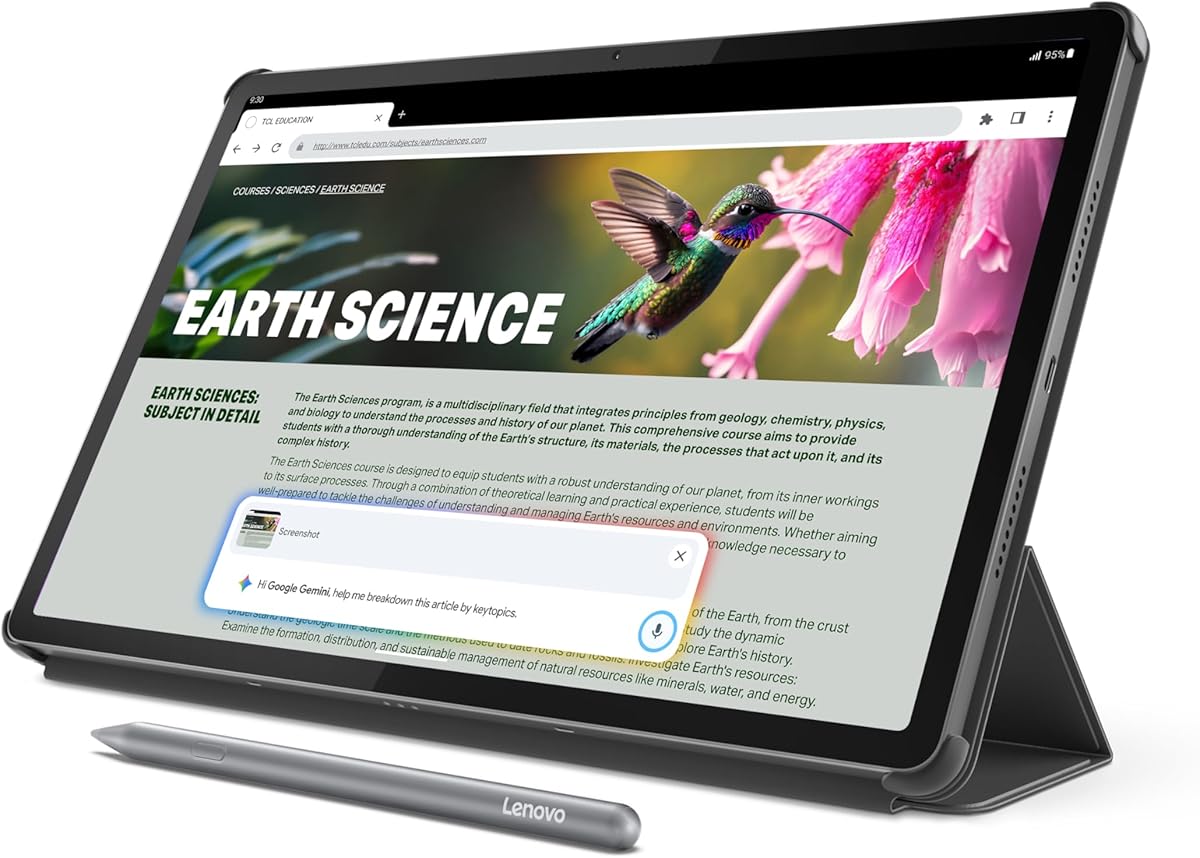
The Lenovo Idea Tab Pro is a general-purpose Android tablet that combines a 12.7-inch 3K LCD with a MediaTek Dimensity 8300 processor, 8GB of memory, and 128GB of storage. Its 4.6 rating is among the strongest in the group, making it attractive for users who want CAD-adjacent work, presentation, and note-taking in one device.
We may earn a commission when you buy through this link, at no additional cost to you.
The included Tab Pen Plus supports Circle to Search, while Google Gemini is positioned as an AI assistant for studying and organizing information. Low Blue Light certification, mono and chromatic viewing modes, quad JBL Dolby Atmos speakers, and Wi-Fi 6E support make it a well-rounded mobile productivity device. The stated 11 hours of unplugged video playback helps offset the demands of a large display.
Unlike a dedicated pen display, it does not provide a screen-on which the pen draws. Nor does the supplied data identify pressure levels, tilt support, active-area dimensions, or a high-resolution drawing surface. Those omissions matter when precise CAD linework, controlled technical strokes, or overlay annotation are the main objective.
It is a strong choice for architectural students, consultants, and multidisciplinary professionals who need to view drawings, annotate PDFs, sketch ideas, and present work from a portable Android device. It is less convincing as a precision input surface than the Kamvas or Wacom options, but its large high-resolution display and included accessories broaden its everyday usefulness.
A 3K panel gives plans, schematics, and reference documents more visible detail while supporting focused reading modes. The large screen also reduces the need to zoom as aggressively when reviewing technical material.
The processor, Wi-Fi 6E support, Google Gemini features, and included pen make this a capable study and review device. It can serve as a portable reference screen for meetings, field documentation, and client conversations.
We may earn a commission when you buy through this link, at no additional cost to you.
The HUION H420X is the most budget-conscious dedicated pen tablet in this guide. It combines an 8,192-level battery-free stylus, a 300 PPS report rate, and a compact seven-millimeter body, earning a 4.4 customer rating despite its small footprint.
We may earn a commission when you buy through this link, at no additional cost to you.
Its active area measures 4.17 by 2.6 inches, making it best for quick sketches, small diagrams, markup, and short drawing sessions. The included pen offers two customizable buttons, allowing common functions such as right-click and eraser commands to be assigned. At 167 grams, the tablet is easy to carry and occupies little desk space.
Compatibility is broad for a basic tablet. The product supports Windows 7 or later, Mac OS 10.12 or later, and Android 6.0 or later, and it is listed with applications including Photoshop, Illustrator, Sketchbook, Clip Studio Paint, Corel Painter, and other major graphics tools. It also works with productivity and communication applications such as Word, Excel, PowerPoint, OneNote, Zoom, and Microsoft Teams. It is not compatible with iOS.
This is a sensible entry point for students, early-career drafters, and occasional CAD users who want pressure-sensitive control without a display. The tradeoff is obvious: a tiny active area and no screen make detailed architectural or mechanical drawings more labor-intensive. It works best for annotation, ideation, diagrams, and users willing to zoom and pan regularly.
The 8,192 pressure levels and 300 PPS report rate provide responsive, graduated input for sketches and annotations. Those specifications are more than sufficient for learning pen control and handling everyday technical markup.
The small, lightweight body leaves most of the desk available for a keyboard, mouse, or conventional monitor. It is especially convenient for students and mobile workers who switch between drafting, note-taking, and other tasks.
We may earn a commission when you buy through this link, at no additional cost to you.
The Lenovo Idea Tab Pro Gen 2 is built around a 13-inch 3.5K LTPS touchscreen, 144Hz refresh rate, and Snapdragon 8s Gen 4 platform. With a 4.3 customer rating, it stands out as a sophisticated mobile reference and note-taking device for technical professionals and students.
We may earn a commission when you buy through this link, at no additional cost to you.
Lenovo AI features target documentation workflows. Smart Capture can pull visuals into Lenovo Notepad, Sketch to Image can clean up hand-drawn ideas, Live Transcript can capture meetings and classes, and AI Notes can summarize or rewrite sections. These tools do not replace CAD software, but they can make field observations, design rationale, and research easier to organize.
The screen reaches 800 nits and carries TÜV Rheinland Low Blue Light and Flicker Free certifications. The integrated Adreno 825 GPU, 8GB of memory, and 128GB of storage support study apps, editing, and multitasking. The included pen and folio improve the package for users who want to annotate documents and take handwritten notes.
As with the first-generation Idea Tab Pro, the data does not specify pressure sensitivity, tilt support, or a professional pen-display active area. The device is therefore best considered a powerful CAD viewing, presentation, and documentation tablet. Choose it when sharp visual review, note organization, and mobile productivity matter more than drawing directly on the screen with a calibrated pen display.
The 3.5K resolution and 800-nit brightness make complex plans and reference documents easy to inspect. High refresh also keeps navigation and on-screen interactions smooth when moving between applications.
Smart Capture, transcription, summaries, and image cleanup can convert a rough meeting into a more structured record. That makes the tablet useful for capturing the reasoning behind a design as well as reviewing its appearance.
We may earn a commission when you buy through this link, at no additional cost to you.
The Samsung Galaxy Tab S10+ combines a 12.4-inch Dynamic AMOLED 2X display, 256GB of storage, and an included S Pen in an Android tablet designed for creation and productivity. Its 4.7 rating is the highest among the ten products listed here, making it a strong premium recommendation.
We may earn a commission when you buy through this link, at no additional cost to you.
The reduced-glare AMOLED screen provides a vivid, high-contrast canvas for reviewing plans, sketches, technical illustrations, and client presentations. Galaxy AI features include Sketch to Image for turning simple sketches into artwork, Circle to Search for finding visible content, and Note Assist for organizing and summarizing recorded notes. The S Pen supports natural handwriting and drawing without a separate pen purchase.
Durability is another differentiator. The tablet is described as resistant to bumps, dust, and splashes, which is useful for a mobile design workflow. Its large screen, strong processor, and 256GB storage make it a capable platform for viewing complex projects, working in productivity applications, and presenting concepts away from a workstation.
The product data does not state pressure levels, tilt response, active-area measurements, or whether the included S Pen is intended as a dedicated CAD input tool. It also runs Android rather than a professional Windows CAD environment. It is best for users who want a premium mobile review and ideation platform, while pen-display specialists should examine the HUION Kamvas for explicit precision specifications.
The Dynamic AMOLED 2X display offers deep contrast and reduced glare for reviewing dark linework and detailed graphical content. Its large proportions also make it effective for presenting plans to a client or collaborating around a table.
Galaxy AI combines pen-based input with automated sketch transformation and note organization. The result is a flexible device for moving between early ideas, annotations, documentation, and presentations.
We may earn a commission when you buy through this link, at no additional cost to you.
The Samsung Galaxy Tab S10 FE+ is a large Android tablet built around a 13.1-inch display, a 4.7 customer rating, and an included S Pen. It is particularly appealing for students and professionals who want a broad canvas for viewing technical documents, teaching, note-taking, and design discussion.
We may earn a commission when you buy through this link, at no additional cost to you.
Handwriting Assist can straighten and align notes, while Math Solver converts handwritten equations into text. Circle to Search provides a quick way to find visible information without leaving the current screen. The S Pen is designed to feel responsive, and the large panel gives sketches, diagrams, and reference images more room to breathe.
Samsung describes the Galaxy Tab S10 FE series as dependable around water, including resistance to droplets, splashes, and immersion. Fast charging helps when the device is used intensively, and the stated storage can be expanded with a microSD card. These characteristics suit a mobile working environment where spills, travel, and long review sessions are likely.
The FE+ is more of a versatile productivity tablet than a specialist CAD pen display, and the supplied data does not state pressure sensitivity or tilt specifications. It is an excellent option for presenting, reviewing, and annotating, especially where a large screen matters. Users creating CAD geometry from scratch may prefer a device with explicitly documented pen-display precision.
The 13.1-inch screen is among the largest in this guide and gives technical documents a generous viewing area. It can reduce the need for constant zooming when checking layouts, diagrams, or visual details.
Handwriting Assist and Math Solver are useful when field notes or design calculations need to become cleaner and easier to share. These tools complement, rather than replace, a full CAD application.
We may earn a commission when you buy through this link, at no additional cost to you.
The Wacom Intuos Pro Large is a professional pen tablet for users who want a generous drafting area, highly configurable controls, and the feel of a traditional pen device. It carries a 4.3 customer rating and includes Wacom's ProPen 3 stylus.
We may earn a commission when you buy through this link, at no additional cost to you.
ProPen 3 supports 8,192 pressure levels, tilt, and lag-free tracking, with options for straight or flared grips, balance adjustment, and customizable button placement. Ten ExpressKeys and two mechanical dials sit near the upper edge of the tablet, allowing frequently used commands to be handled without reaching for a keyboard.
The large 16:9 format suits wide monitors and multi-display workspaces. Its active area provides more room for technical drawing than compact tablets, reducing the frequency of zooming and panning. The body is only four millimeters at its thinnest point and uses magnesium for a sturdy construction that can move between a permanent desk and a mobile workstation.
It supports both USB and Bluetooth, and Bluetooth can connect to multiple computers for switching among workstations. Its main limitation is that it is a tablet rather than a display, so users still look at a separate monitor. It is a strong professional recommendation for CAD users who value input feel, workspace customization, and a large canvas over direct screen drawing.
Adjustable grip, balance, and button layout let users tune ProPen 3 to their hand and working style. Pressure and tilt support provide useful control across technical strokes, hatching, annotations, and freehand design work.
A broad 16:9 active area complements wide and multi-monitor setups. More usable space is especially helpful when a project requires continuous drawing, detailed markup, or several visible tool palettes.
We may earn a commission when you buy through this link, at no additional cost to you.
The best tablet for CAD design is not necessarily the device with the largest screen or the longest specification list. Your software environment, drawing precision, need for mobility, and preferred working style should determine which category of tablet deserves the most attention.
A pen tablet has no built-in screen, so the hand rests on a separate active surface while the cursor appears on a monitor. This arrangement gives you more screen area, a larger digital workspace, and often a more natural relationship with a full desktop application. A pen display places the artwork directly beneath the pen, which improves visual alignment and is helpful for detailed annotation, illustration, and design review. Pen displays also create more visual parallax and usually require a computer, whereas ordinary pen tablets can be used with many laptops or selected mobile devices. The HUION Kamvas 13 Gen 3 represents the screen-based approach, while the Wacom Intuos models and HUION H420X represent the conventional tablet approach.
Pressure sensitivity determines how readily the software changes stroke weight, opacity, or brush size in response to pen force. Higher numerical levels can offer finer control, although real-world performance also depends on the pen, surface, software, and user technique. Tilt support is valuable when a tool such as a technical pencil or shading brush benefits from the angle of the nib. The H420X provides 8,192 levels, the Wacom Intuos Pro Large also provides 8,192 levels and tilt, and the Kamvas 13 Gen 3 offers 16,384 levels with 2-gram initial activation. Products such as the PicassoTab X14 offer 4,096 levels, while the general-purpose Android tablets in this guide do not publish comparable CAD-focused pressure figures.
A larger active area lets you draw longer strokes and work with less frequent zooming. The Wacom Intuos Pro Large is designed for a roomy 16:9 drafting experience, whereas the H420X has a compact 4.17 by 2.6-inch active area suited to sketches and annotations. Screen size is a related but different measure: the PicassoTab X14, RubensTab T11 Pro, and Samsung Galaxy tablets provide 14-inch, 10.1-inch, 13.1-inch, and 12.4-inch or 12.7-inch viewing areas. For CAD, a larger canvas helps when comparing details, but the usable resolution and direct hand-to-screen relationship may matter more than the headline diagonal.
Standalone tablets integrate a display, processor, storage, operating system, and battery into one device. The PicassoTab X14 and RubensTab T11 Pro can create without a separate computer, making them convenient for field work, teaching, and presentations. Their limitation is that the availability and depth of native CAD software may not match a desktop workstation. Pen tablets and pen displays generally depend on a computer, but they can use established Windows or macOS applications and access larger project files. Decide whether independence is more valuable than access to the exact CAD application and version used by your employer or client.
CAD work may involve color-coded layers, material palettes, renderings, and technical illustrations. The Kamvas 13 Gen 3 stands out for its anti-glare laminated surface, 99% sRGB and Rec.709 coverage, 90% Adobe RGB coverage, and factory calibration to Delta E below 1.5. The standalone RubensTab uses a Full HD IPS display, while the Samsung Galaxy models use large AMOLED screens and the Lenovo Idea Tab Pro models use 3K or 3.5K LCD or IPS panels. If your output is primarily monochrome linework, color calibration may be less critical than pen alignment and screen clarity. For visualization and rendering, accurate color becomes substantially more important.
Professional drafting often involves repeated commands such as changing layers, adjusting zoom, switching tools, or editing properties. The Kamvas 13 Gen 3 provides two dials and five silent press keys, while the Wacom Intuos Pro Large provides ten customizable ExpressKeys and two mechanical dials. The smaller H420X includes two customizable buttons on its stylus. These controls can reduce reliance on the keyboard, but their value depends on software support and personal habit. Check whether the operating system and CAD application can map the expected commands, and ensure the tablet can be configured for left- or right-handed use when that matters.
Portability depends on more than the weight of the device. A standalone tablet must also carry its own power source, while a connected pen tablet can rely on a computer that is already part of the workstation. The Kamvas 13 Gen 3 is 11.7 millimeters thick and weighs 865 grams, making it easy to carry between offices. The H420X is only seven millimeters thick and weighs 167 grams. The RubensTab T11 Pro provides up to five hours of stated continuous use from its 5,800mAh battery, while the Lenovo Idea Tab Pro claims 11 hours of unplugged video playback. Actual creative runtime varies by brightness, wireless use, screen workload, and application demands.
Before purchasing, verify the operating system, connector, pen protocol, and CAD application required by your workflow. The H420X supports Windows, Mac OS, and Android but explicitly does not support iOS. The Kamvas 13 Gen 3 supports Windows 10 or later, Mac OS 10.12 or later, compatible Android devices using USB 3.1 Gen 1 and DisplayPort 1.2, and Ubuntu 20.04 LTS. Standalone Android and Linux-based drawing tablets may support selected preinstalled apps but not every specialized desktop CAD package. Also confirm whether wireless mode, USB-C cables, adapters, or driver updates are required for your primary computer.
Begin by installing the manufacturer's current driver and software, then connect the tablet using the supported cable or pairing procedure. Set the active area to match the physical proportions of your display, calibrate pen coordinates if the application provides that option, and configure a left-handed or right-handed workspace before beginning detailed work. Test pressure, zoom, shortcuts, and cursor visibility with a simple drawing containing straight lines, small circles, and text.
Establish a consistent working posture. Place the tablet close enough to reach without raising the shoulder, keep the active surface clear of loose objects, and avoid dragging the pen across abrasive surfaces. For a pen display, use a soft cloth to clean the glass and consider a screen protector compatible with the pen nib. For a standalone tablet, check that applications and files are saved locally or synchronized before traveling, and carry the correct charger or power bank.
Protect accuracy through regular maintenance. Replace a damaged or loose nib, keep the pen battery or EMR system free from moisture when applicable, and avoid using the tablet surface as a general resting area for tools. Update drivers and operating-system software when needed, back up technical work regularly, and recalibrate whenever the display, pen, or connection changes. Before a client review, verify line weight, dimensions, annotations, and file compatibility in the final export format.
A professional pen tablet is often the most practical choice because it provides a large active area while your CAD program remains on a full-size monitor. A pen display is preferable when you want the pen tip and cursor to align directly over the drawing. The best choice ultimately depends on your software, workspace, and need for mobility.
An Android tablet can be useful for viewing drawings, taking notes, sketching, and presenting, especially with products such as the Samsung Galaxy Tab S10+ and Lenovo Idea Tab Pro models. It may not run the exact desktop CAD application used in your workplace. Confirm application availability, file interoperability, pen behavior, and export requirements before treating it as a primary modeling device.
Pressure sensitivity is useful for freehand annotation, variable line rendering, shading, and pencils, while many CAD objects are created with geometric tools and constant line weights. It is not the only factor that determines a tablet's suitability. Active area, pointer accuracy, shortcut controls, tilt, and software compatibility can be equally important for technical work.
A standalone tablet is better when portability and computer-free operation are priorities. It is less suitable when your workflow depends on specialized Windows or macOS CAD software, large project files, or company plug-ins. A computer-connected pen tablet usually provides a broader choice of established professional applications.
A larger active area does not automatically increase pointer accuracy, but it reduces how often you must zoom, pan, or lift the pen. That can improve workflow comfort and make detailed drafting more consistent. Screen resolution, calibration, driver quality, and the condition of the pen also influence the overall experience.
Most modern CAD and illustration applications accept compatible pen-tablet input through a mouse or pointer driver. The HUION H420X is specifically listed with a broad collection of graphics and productivity applications, while the Kamvas 13 Gen 3 supports major desktop and mobile platforms. Confirm your exact application and operating system before purchasing.
Choose a pen tablet if you want a large working area and prefer using a separate monitor. Choose a pen display if you want direct hand-to-screen interaction, particularly for illustration, retouching, and detailed annotation. Pen displays can feel more intuitive to new users, but they occupy desk space and may introduce some parallax that regularizers can reduce.
Verify the operating system, required application, connector, driver, coordinate calibration, and export format. Test straight-line accuracy, small geometry, zoom behavior, and shortcut mappings before committing to a long project. For client deliverables, also open the exported file in another application to check that dimensions, layers, fonts, and line weights remain correct.
The HUION Kamvas 13 Gen 3 is the leading recommendation for users who want direct on-screen drawing, very high pressure resolution, calibrated color, and dedicated dials and keys. The HUION H420X is the best budget choice for learning and compact technical work, while the Samsung Galaxy Tab S10+ is the premium general-purpose option for mobile review, presentation, and pen-enabled productivity.
Prioritize the workflow you perform most often. Choose a spacious conventional pen tablet for desktop modeling, a screen-based pen display for precise overlay work, a standalone device for portable ideation, or a premium Android tablet for documentation and presentations. Confirm software compatibility and the need for calibrated color before choosing a model based on display size or design alone.
Ratings, configurations, software features, and current prices can change over time. Review the latest product listing, included accessories, warranty terms, and system requirements before purchasing. That final check helps ensure the selected tablet remains suitable for your particular CAD workflow and working environment.